Navigation

  • index
  • next |
  • previous |
  • Stage Python scientifique 3e 2016-2017 »
  • Installation de l’environnement de programmation Python 3.5, Anaconda, Gimp, Sphinx »

Installation de l’environnement scientifique Python Anaconda

See also

  • https://www.continuum.io/downloads

Contents

  • Installation de l’environnement scientifique Python Anaconda
    • Installation de Python 3.5 64 bits avec anaconda
    • Après installation
      • Un menu apparait dans les programmes disponibles
    • IDEs disponibles

Installation de Python 3.5 64 bits avec anaconda

../../_images/anaconda.png

Installation de l’environnement scientifique avec Anaconda (https://www.continuum.io/downloads)
Après installation

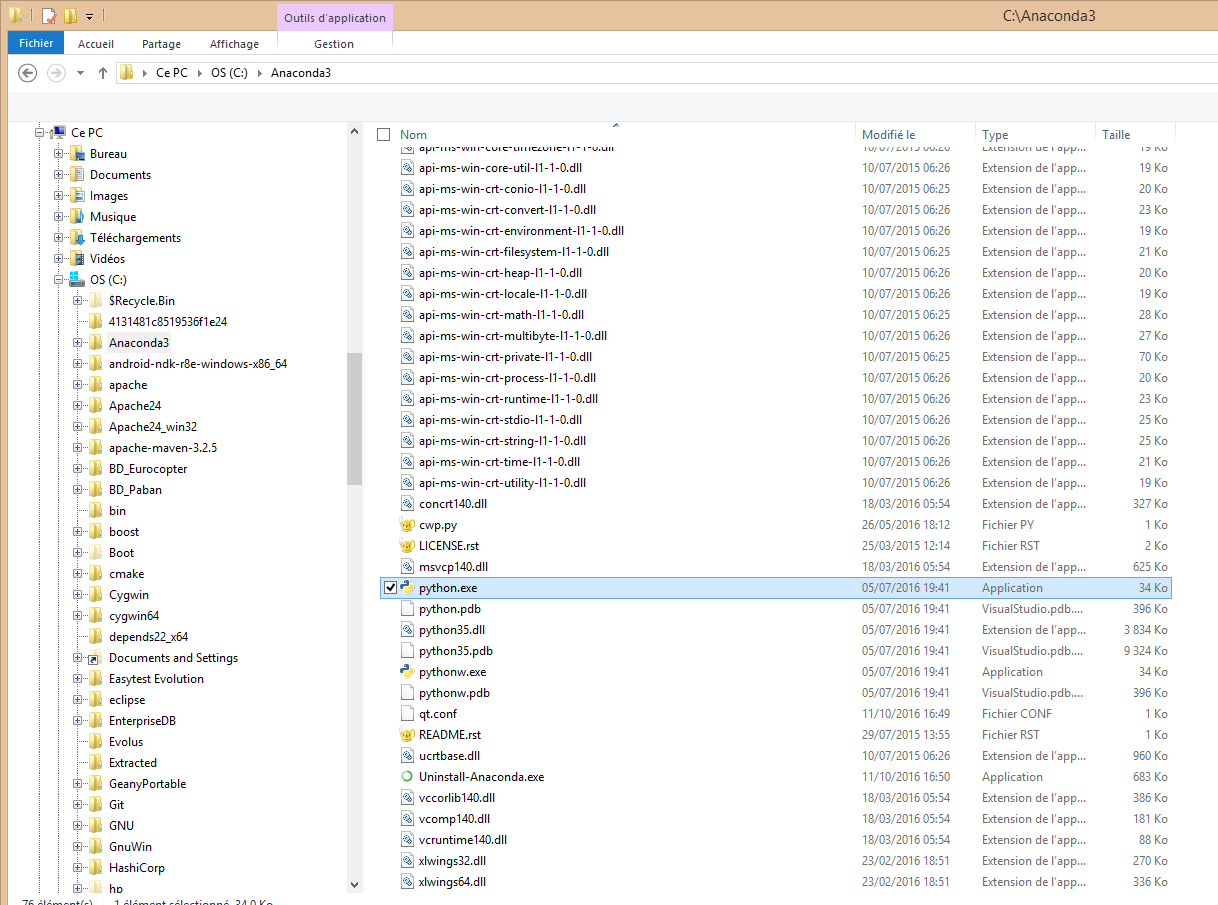
L’interpréteur Python (python.exe) est sous le répertoire c:anaconda3

../../_images/tree_anaconda.png

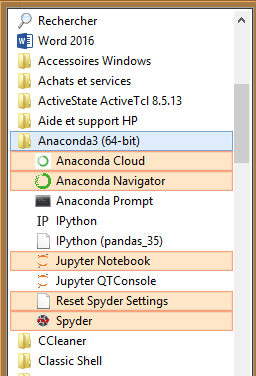
Un menu apparait dans les programmes disponibles

../../_images/apres_install_anaconda.png

IDEs disponibles

See also

  • https://fr.wikipedia.org/wiki/Environnement_de_d%C3%A9veloppement
  • Spyder is the Scientific PYthon Development EnviRonment
  • IPython
    • Description
    • Fernando Perez
  • Jupyter Notebook (anciennement IPython notebook)
    • Description
    • Sauvegarde d’un notebook
    • Chargement d’un notebook

Table Of Contents

  • Installation de l’environnement scientifique Python Anaconda
    • Installation de Python 3.5 64 bits avec anaconda
    • Après installation
      • Un menu apparait dans les programmes disponibles
    • IDEs disponibles

Previous topic

Installation de l’environnement de programmation Python 3.5, Anaconda, Gimp, Sphinx

Next topic

Spyder is the Scientific PYthon Development EnviRonment

This Page

  • Show Source

Quick search

Enter search terms or a module, class or function name.

Navigation

  • index
  • next |
  • previous |
  • Stage Python scientifique 3e 2016-2017 »
  • Installation de l’environnement de programmation Python 3.5, Anaconda, Gimp, Sphinx »
© Copyright 2016, Anaelle, Sofia et Patrick. Created using Sphinx 1.3.5.